
# New Driver App updates
Driver
This release brings meaningful improvements to three core workflows in the Dropboy Driver App:
- Failed delivery
- Navigation
- Load Hub
The update helps drivers make clearer choices, improves cargo handling at the hub, and gives more flexibility when navigating to a stop.
What’s new
- Failed delivery now guides drivers through reason selection before finalising a failed stop.
- Navigation now supports both geocoordinates and physical addresses.
- Load Hub now supports both manual and scan-based status updates.
- Loaded and not loaded cargo is now easier to identify and update.
Failed delivery updates
Driver
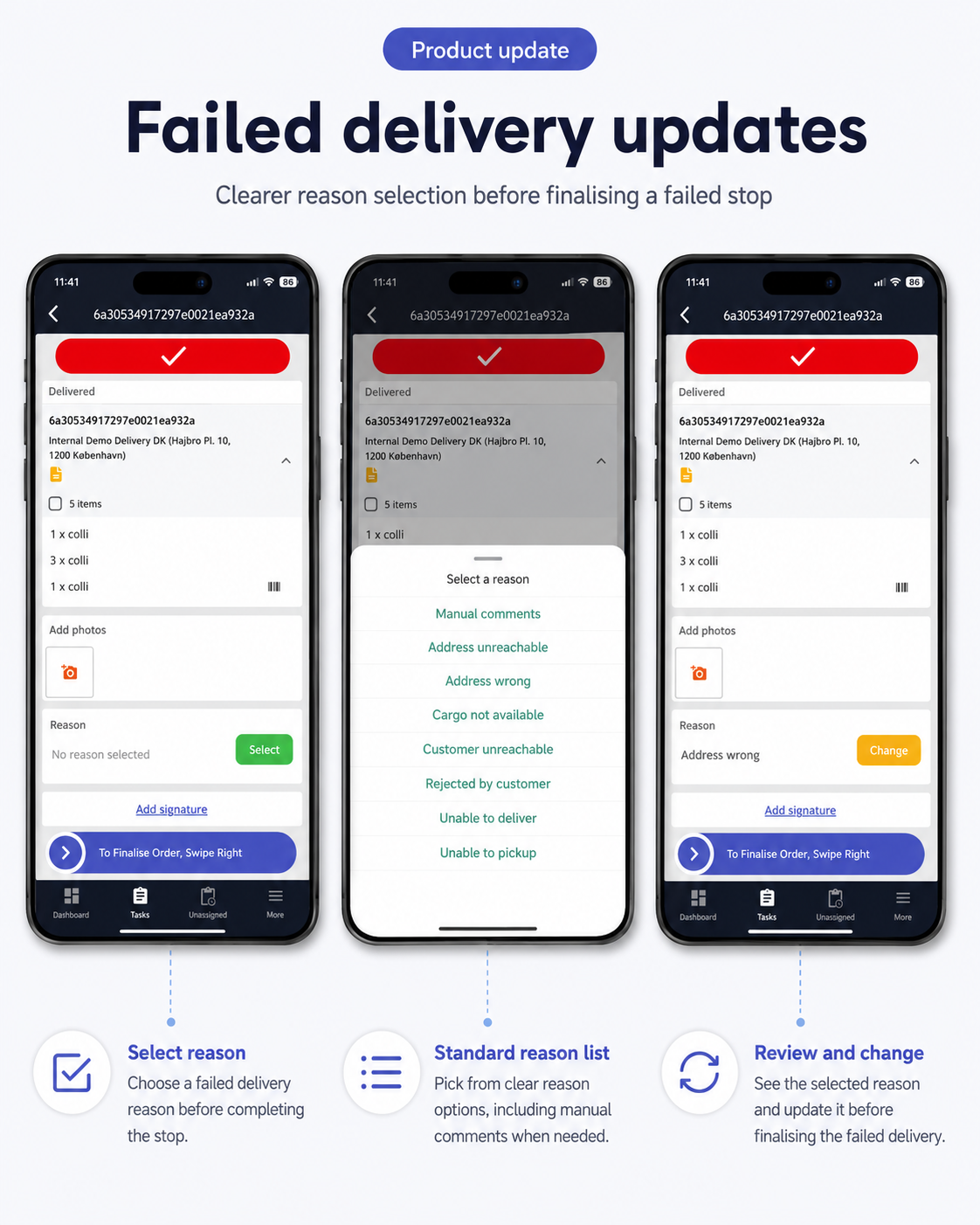
Failed delivery has been improved to make reason selection clearer before the driver finalises a failed stop.
How it works
- Open the delivery stop in the Dropboy Driver App.
- Choose to finalise the stop as failed delivery.
- Tap Select in the reason section.
- Choose the reason that best describes why the delivery could not be completed.
- Review the selected reason before finalising the stop.
- If needed, tap Change to update the reason before completing the failed delivery.
Reason selection
Drivers can now choose from a clear list of failed delivery reasons, including:
- Manual comments
- Address unreachable
- Address wrong
- Cargo not available
- Customer unreachable
- Rejected by customer
- Unable to deliver
Important to know
- A failed delivery reason should be selected before the stop is finalised.
- The driver can review the selected reason before completing the action.
- Manual comments are still available when the predefined reasons do not fully describe the situation.
Why this is useful
- Drivers get a clearer flow when reporting failed deliveries.
- Dispatchers receive better and more consistent failed delivery information.
- The selected reason helps improve follow-up, reporting, and data quality.
Navigation updates
Driver
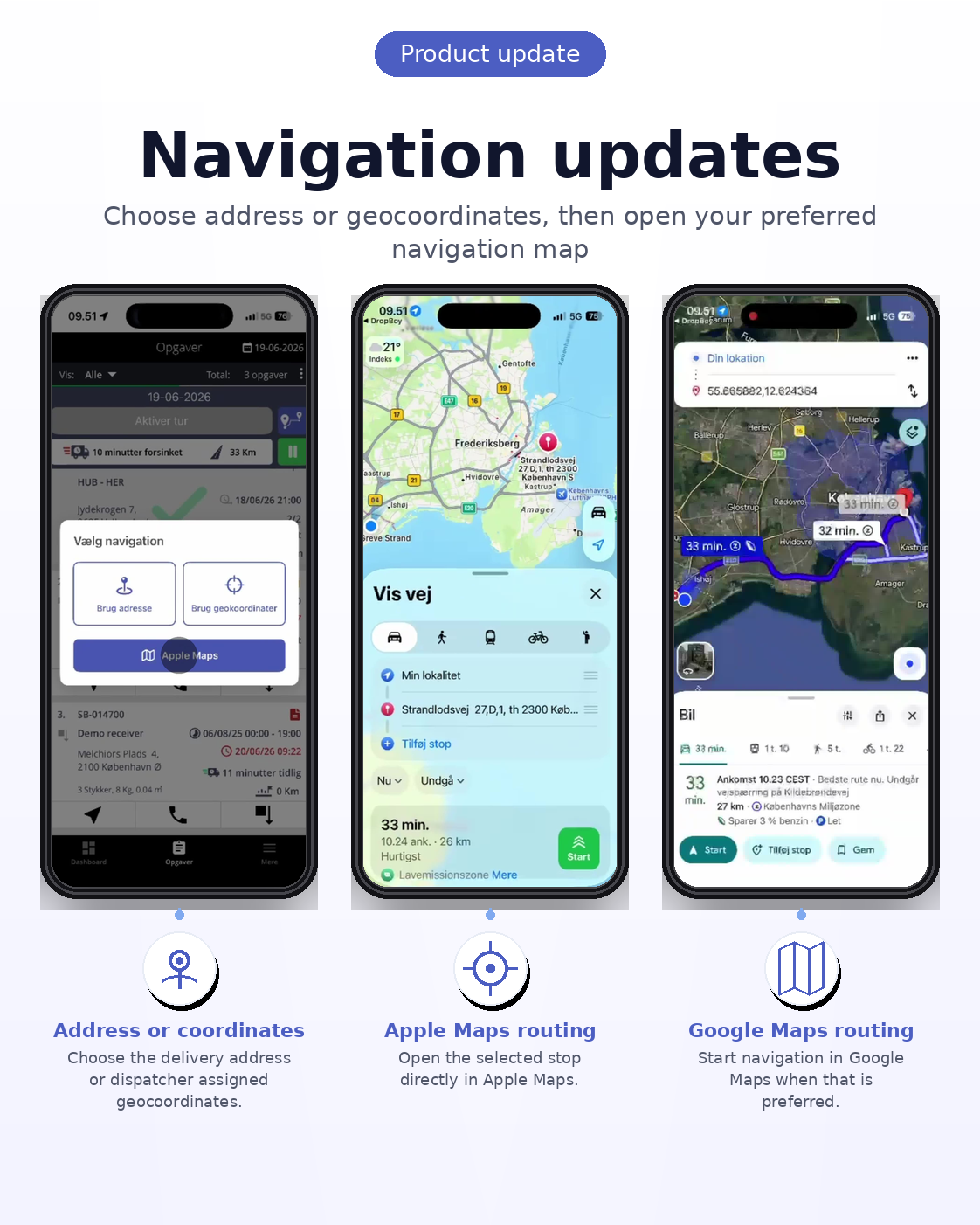
Navigation has been improved so drivers can choose whether to route to a stop using the physical address or the assigned geocoordinates.
How it works
- Open the stop in the Dropboy Driver App.
- Tap the navigation option.
- Choose whether to navigate using Address or Geocoordinates.
- Select the preferred navigation map app.
- Open the route and continue to the stop.
Navigation options
- Use Address — navigate using the physical delivery address.
- Use Geocoordinates — navigate using the assigned coordinate pin.
- Choose map app — open the route in the preferred map application.
Important to know
- Geocoordinates can be useful for job sites, yards, construction areas, large facilities, or locations where the street address alone is not precise enough.
- Address navigation remains available for standard deliveries.
- The driver can choose the option that best matches the stop.
Why this is useful
- Drivers get more flexible navigation options.
- Dispatchers can provide more accurate locations when an address is not enough.
- This can reduce confusion and help drivers reach the correct delivery point faster.
Load Hub updates
Driver
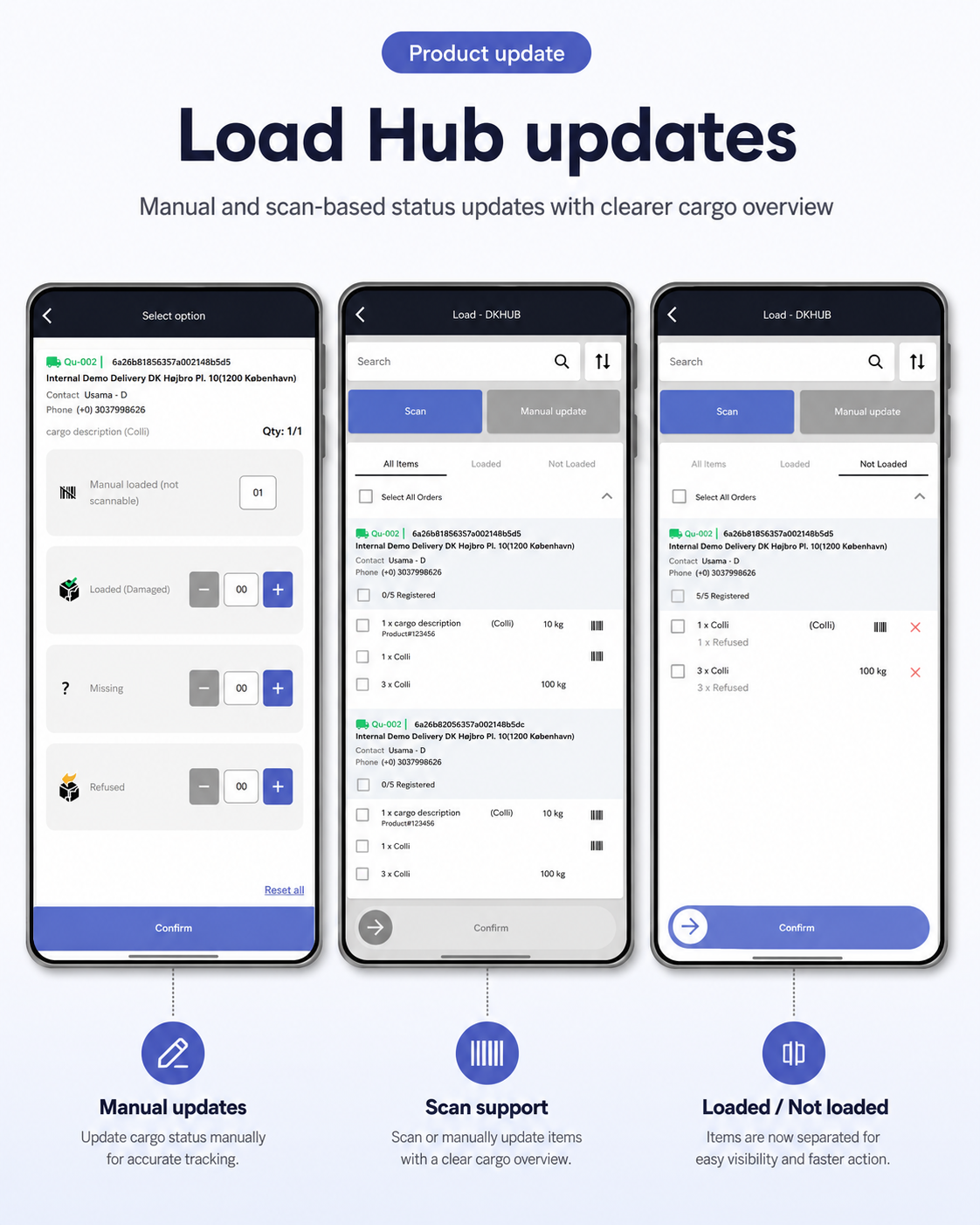
Load Hub has been updated with support for both scan-based and manual cargo status updates.
How it works
- Open Load - DKHub in the Dropboy Driver App.
- Use Scan to register cargo by scanning items.
- Use Manual update when an item cannot be scanned or needs to be updated manually.
- Choose the relevant cargo status.
- Review loaded and not loaded items.
- Confirm the registration.
Cargo status options
Drivers can update cargo with statuses such as:
- Manual loaded
- Loaded damaged
- Missing
- Refused
Cargo overview
Cargo is now separated into:
- All Items
- Loaded
- Not Loaded
Important to know
- Manual updates make it possible to register items that cannot be scanned.
- Loaded and not loaded items are easier to separate and review.
- The registration overview helps the driver confirm that the correct cargo status has been updated.
Why this is useful
- Drivers get a clearer overview of cargo status at the hub.
- Manual and scan-based updates reduce handling errors.
- Loaded and not loaded cargo can be reviewed faster before confirming.
Summary
Driver
This update improves three important Driver App workflows:
- Failed delivery is clearer with reason selection before finalising a failed stop.
- Navigation is more flexible with support for both addresses and geocoordinates.
- Load Hub is easier to use with scan support, manual updates, and clearer loaded / not loaded cargo separation.
These improvements help drivers work faster and more accurately, while giving dispatchers and operations teams cleaner status data from the app.