
Improved
Introducing 2FA
about 9 hours ago by Muneeb Zubair
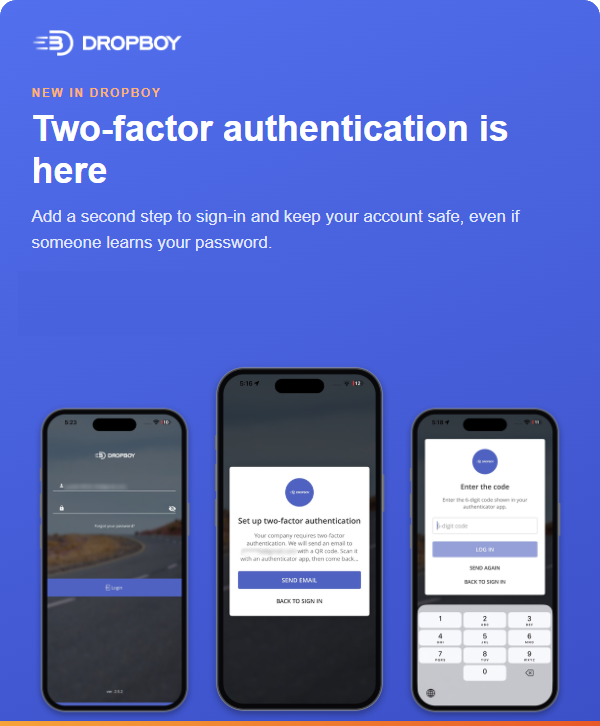
We’ve just rolled out Two-Factor Authentication (2FA) on Dropboy. With 2FA on, signing in takes your password plus a short code from an authenticator app on your phone. It’s quick to set up, and it’s off by default, so your Admin decides which roles use it.
For Admins:
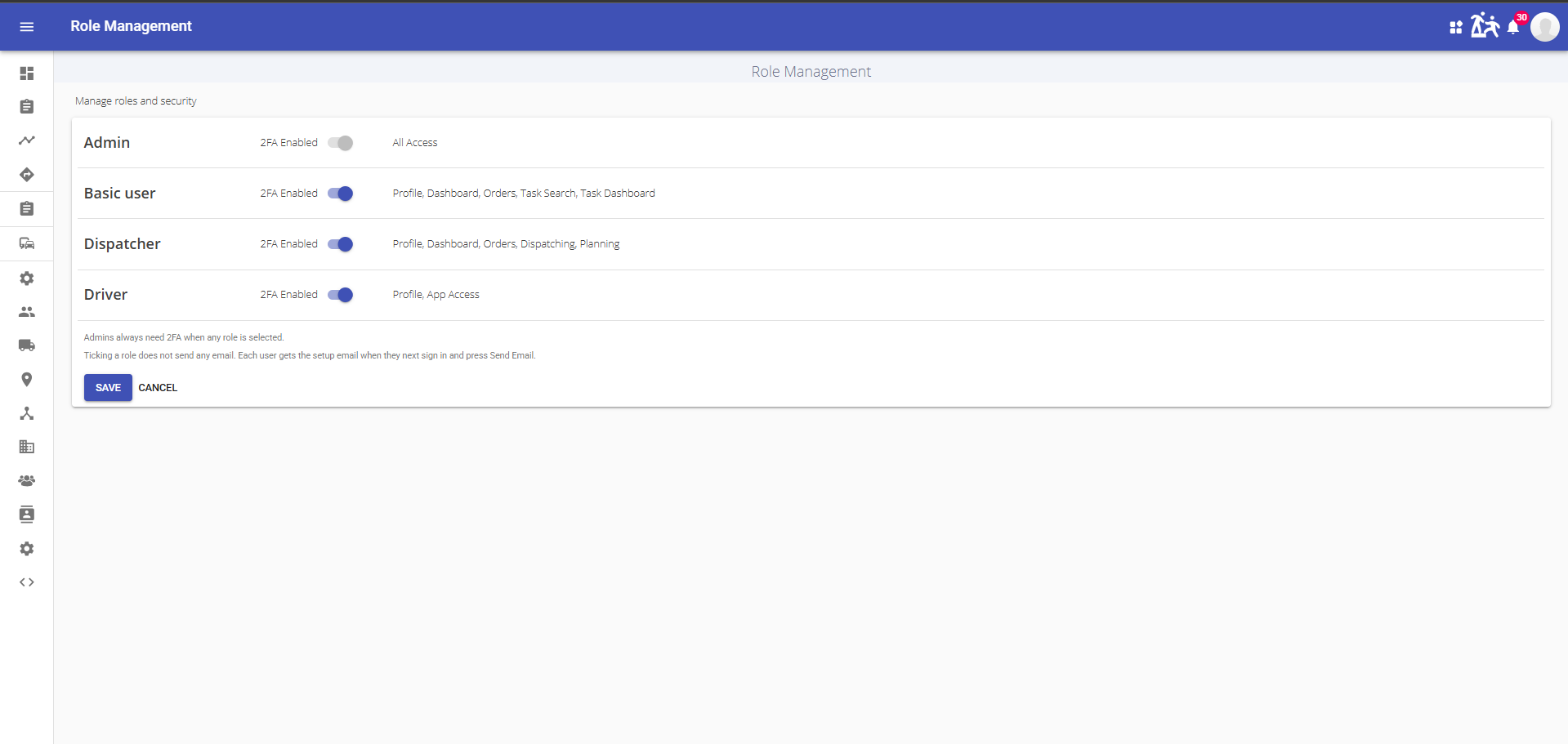
Turn on 2FA for your roles
Turn on 2FA for your roles
- Go to Settings > Role Management.
- Toggle on 2FA next to each role that should use it.
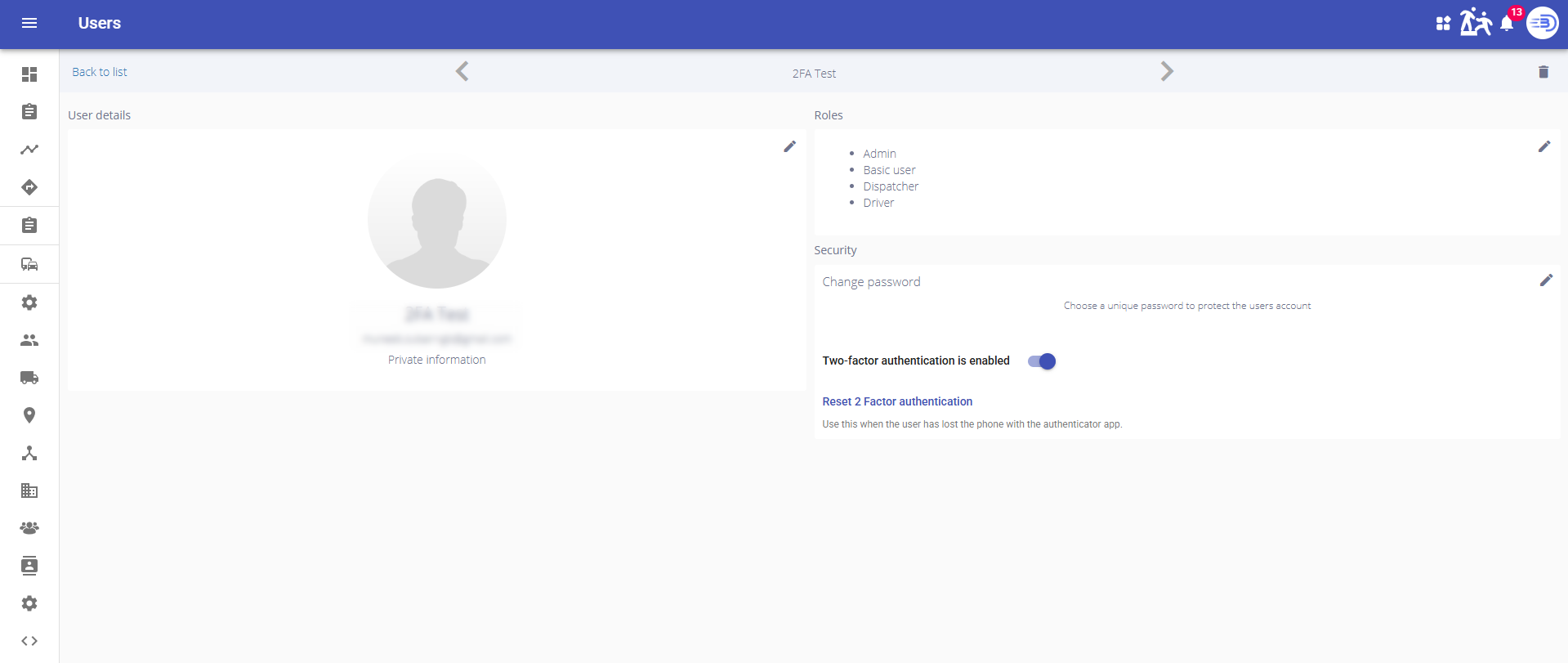
Control 2FA for your users
- Go to Settings > Users
- Toggle on or off 2FA for the user.
Good to know
- 2FA is off by default for all roles, so nothing changes until you turn it on. As soon as 2FA is turned on for any role, it’s automatically turned on for the Admin role too, so Admins will be asked to set it up themselves.
- The setup email goes to the address on each user’s profile. Please make sure every user in an enabled role has a working email address.
- If someone loses access to their authenticator, open their profile and select Reset 2FA. They’ll then set it up again.
- You can toggle on or off 2FA for the user only if the 2FA is enabled for the user’s role.
For Users: If your 2FA is enabled
- Log in with your username and password as usual.
- If you haven’t set up an authenticator yet, Dropboy will ask you to request the setup instructions by email. The email contains a QR code and a setup key.
- Install Google Authenticator or Microsoft Authenticator on your phone. Add a new account and scan the QR code, or choose the option to enter a setup key and type in the key from the email.
- Once the app is configured, go back to the same Dropboy page where you requested the email and select Continue.
- From then on, after your username and password, Dropboy will ask for the 6-digit code shown in the app.
Skipped the Continue step?
No problem. Just log in again. If your authenticator is already set up, Dropboy will ask for your 6-digit code. If not, it will take you through the setup process again.
Quick tips
- Codes refresh every 30 seconds, so use the current one.
- Set your phone’s date and time to automatic. Codes can fail if the clock is off.
- Don’t see the setup email? Check your spam folder, then ask your Admin to confirm your email address.
- Treat the QR code and setup key like a password. Don’t share or forward the setup email.
2FA is available as of today and is off by default. There’s no enforcement deadline, because your Admin controls when it’s turned on for each role.
For a complete guide click one of the links below:
For Admins:
Guide: How to setup 2FA for your company - AdminFor Platform users:
Guide: How to Sign in to the Platfrom using 2FAFor Android users:
Guide: How to Sign in to Android using 2FAFor iOS users:
Guide: How to Sign in to iOS using 2FA