
Improved
How to use Breaks in Dropboy (Driver)
9 months ago by Dropboy AS
Driver
- Open Tasks in the Dropboy app
- Tap the Break/Pause button (pause icon at the top) or choose to insert a break from the task list.
- Select a break duration (e.g., 15/30/45/60 minutes) or choose manual time.
- The break starts immediately at the driver’s current location and appears in the task list.
- When the break ends, continue the route — ETA for all following stops is automatically adjusted, and the tracking page shows the updated arrival time.
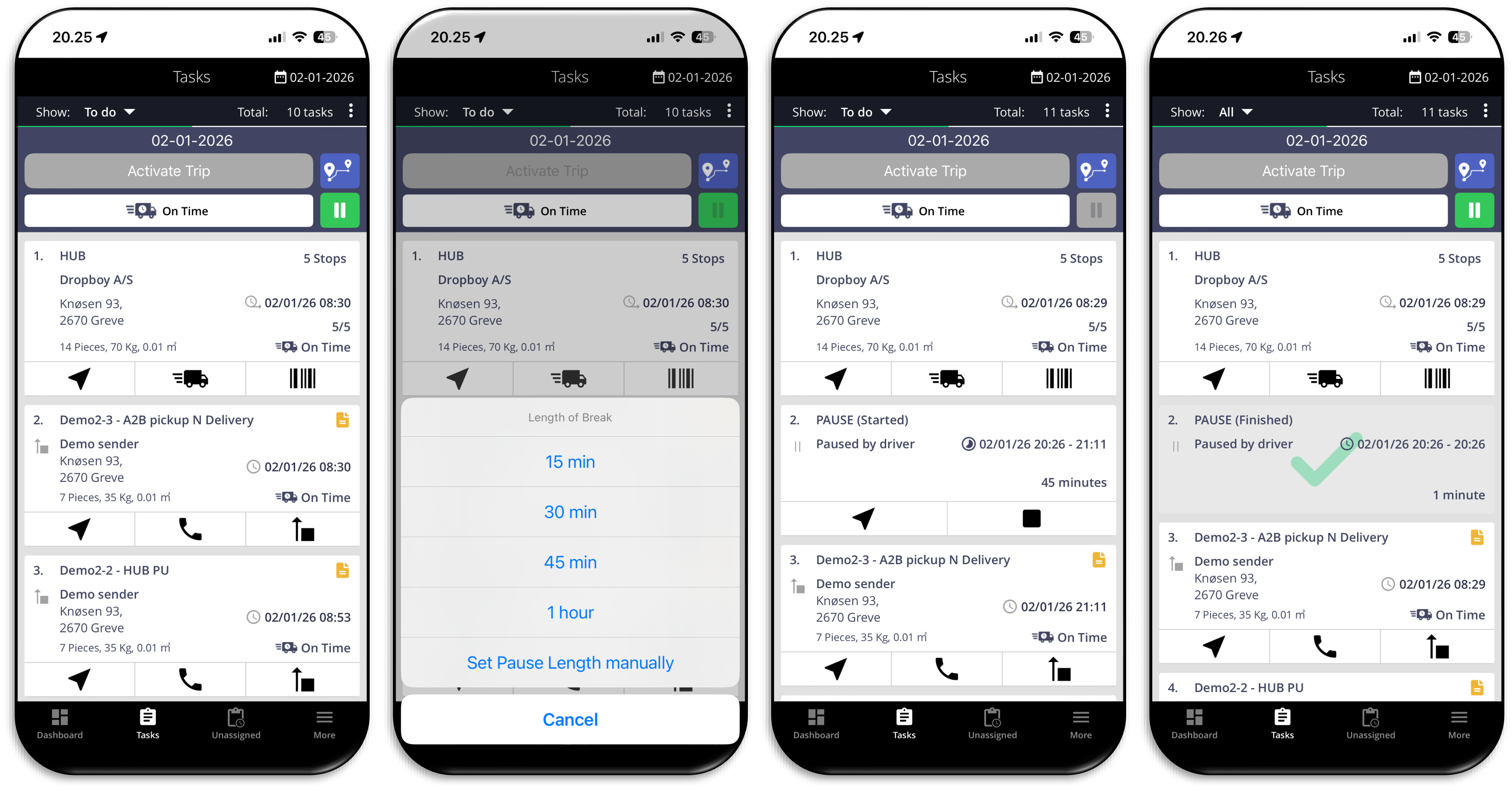
How to choose a break duration (Driver)
- Tap Break/Pause.
- Pick a preset duration (15 / 30 / 45 min / 1 hour) or choose Manual break time.
How to plan breaks (Dispatcher)
- Open the route in Dropboy and choose Insert/plan a break.
- Select the position on the route and the duration (e.g., a charging stop for an electric truck).
- Save the route — the driver can see the planned break from the start, and ETAs are calculated with the break included.